
Check the obstetric data
Validate DUM, DPP, GPA and risk before you examine.
What you will learn
- How the system calculates gestational age and the due date
- How to correct the calculation from the ultrasound
- How to unlock blocked fields with 'Permitir Edição'
Step by step
- 1
Select the patient — the system pre-fills what it already knows.
- 2
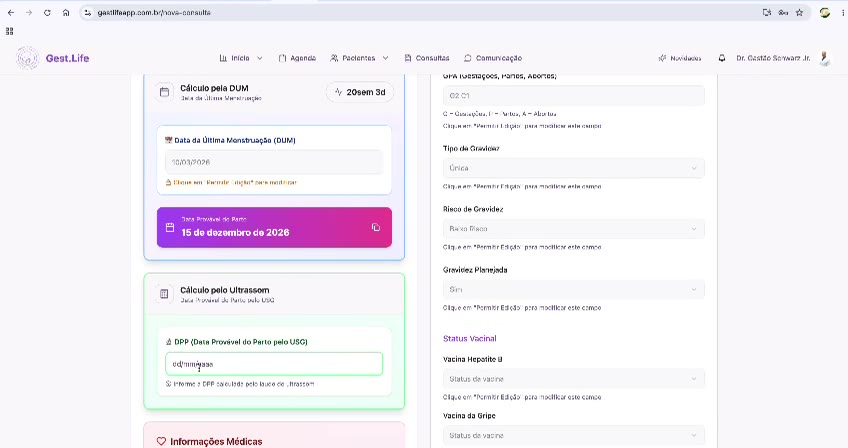
Enter the DUM (last menstrual period): gestational age and DPP (estimated due date) are calculated on the spot.
- 3
If there is an ultrasound, fill in the DPP pelo USG (due date by ultrasound) to correct the gestational age.
- 4
To change GPA, type of pregnancy or risk, click Permitir Edição (allow editing) on the field.
- 5
Move through the tabs: Dados Obstétricos, Consultas do Dia, Anamnese, Exames and Receitas.
Speed shortcut
Why this matters
A wrong gestational age contaminates everything downstream: how you read fundal height, the window for routine tests, the estimated date of delivery and the risk classification itself. Thirty seconds checking DUM and DPP here save you from a plan built on the wrong date.
Best practices
Always do it this way
- When there is a first-trimester ultrasound, it wins: fill in the DPP pelo USG.
- Review the GPA at the first appointment of the pregnancy and only change it later with a reason.
- Go through the tabs in the order you see patients — the system follows the logic of the consultation, not of the form.
Common mistakes
The gestational age differs from the one I calculated.
I can't edit GPA, type of pregnancy or risk.
Go deeper
Carry on here to see what comes before and after this step.