
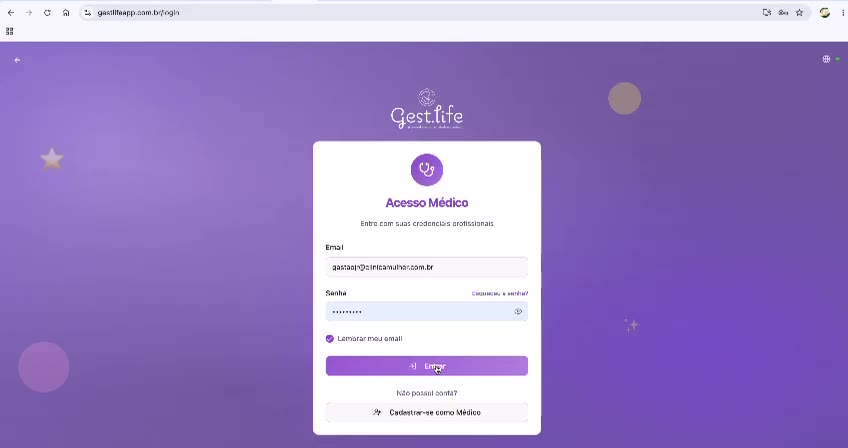
Step 01Acesso Médico (physician login) 1 min
Sign in to the system
Sign in with your professional credentials.
What you will learn
- Where the Acesso Médico screen is
- How to get signing in down to one click from tomorrow on
Step by step
- 1
Type your professional address in the E-mail field.
- 2
Type your password in the Senha (password) field.
- 3
Tick 'Lembrar meu e-mail' (remember my e-mail) so you don't repeat this tomorrow.
- 4
Click Entrar (sign in).
Speed shortcut
Bookmark gestlifeapp.com.br/login in your browser and leave the e-mail remembered: signing in becomes 1 click + password.
Why this matters
Signing in is the only part of the flow that repeats every single day and produces no clinical value. Solving it once — a browser bookmark, the e-mail remembered, the password in your manager — gives you back a few minutes a week and keeps your shift from starting in a password-recovery loop.
Best practices
Always do it this way
- Always use the same browser at the office: session and bookmarks stay consistent.
- Keep the password in the browser's password manager instead of on a note on your desk.
- Never share your access: the appointment history is tied to your professional record.
Common mistakes
I signed in, but the system sends me back to the login screen.
It is usually the browser blocking cookies. Allow cookies for the Gest.Life domain and sign in again.
Go deeper
Carry on here to see what comes before and after this step.